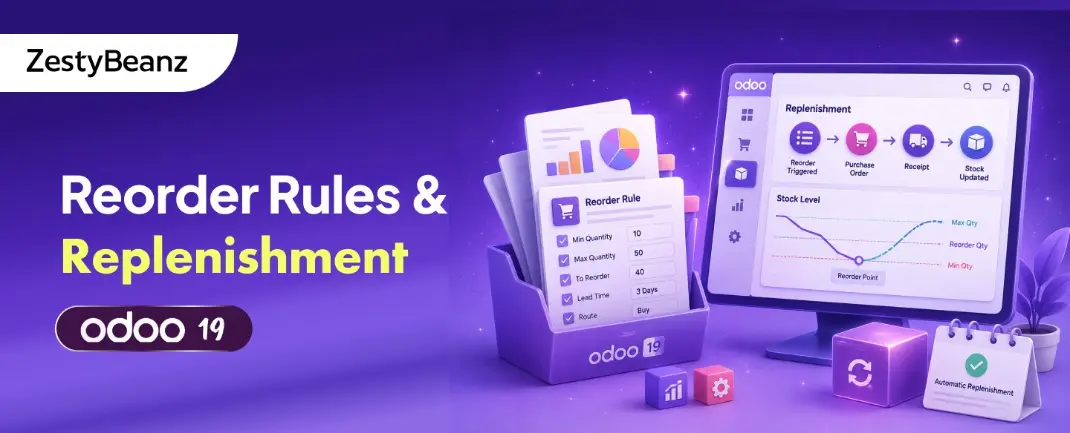
Running out of stock costs you sales. Holding too much stock costs you cash. Odoo 19 Inventory gives you a set of powerful tools to find the balance — Reorder Rules, the Replenishment dashboard, and manual replenishment options — all working together to keep your stock at exactly the right level, with as much or as little automation as you choose.
This blog covers everything you need to know about stock replenishment in Odoo 19: how Reorder Rules work, how the scheduler evaluates them, how lead times factor in, and how to use the Replenishment dashboard effectively.
Reorder Rules (Min/Max Rules)
Reorder Rules — sometimes called Min/Max rules — are the backbone of automated stock management in Odoo 19. Each rule monitors the virtual stock of a product at a specific location. When that virtual stock falls to or below a minimum quantity, Odoo automatically creates a procurement to bring it back up to the defined maximum.
📍 WHERE TO FIND THEM | Inventory → Operations → Replenishment. All active Reorder Rules are listed here, with their current stock status and suggested order quantities. |
Key Fields Explained
Field | What It Does |
|---|
Product | The item you want to keep in stock |
Location | The stock location to monitor (e.g., WH/Stock) |
Route | How to procure — typically Buy or Manufacture |
Min Quantity (QMin) | When on-hand virtual stock reaches this level, trigger replenishment |
Max Quantity (QMax) | The target quantity to replenish up to |
Quantity Multiple | Round order quantities up to a multiple (e.g., pack of 12) |
Lead Time | Days to add when calculating the expected arrival date |
Vendor / Bill of Materials | Auto-populated from the product's configured supply source |
Virtual Stock: What the Scheduler Actually Checks
When the scheduler evaluates a Reorder Rule, it does not simply look at on-hand stock. It calculates Virtual Stock, which takes into account all expected movements:
FORMULA | Virtual Stock = On-Hand Qty + Incoming Qty (confirmed POs / MOs) − Outgoing Qty (confirmed SOs / deliveries) |
This means if you have 10 units on hand, 5 incoming from a supplier, and 12 already reserved for customer orders, your virtual stock is 10 + 5 - 12 = 3. If your QMin is 5, the scheduler will trigger a replenishment even though you physically have 10 units in the warehouse.
💡 KEY INSIGHT | Using virtual stock prevents Odoo from under-ordering. It accounts for committed demand, so you never find yourself with stock on the shelf that is already spoken for without triggering a new order. |
The Replenishment Scheduler
The scheduler is the automated heartbeat of Odoo's replenishment system. It runs as a scheduled action at defined intervals — typically once per day — and evaluates every active Reorder Rule to determine whether a procurement should be triggered.
What the Scheduler Does on Each Run
Reads all active Reorder Rules
Calculates the virtual stock for each product/location combination
Compares virtual stock against the rule's QMin threshold
If virtual stock is at or below QMin, calculates the order quantity (QMax − current virtual stock)
Rounds the quantity up to the nearest Quantity Multiple if set
Creates a Request for Quotation (if route = Buy) or a Manufacturing Order (if route = Manufacture)
Links the procurement to the Reorder Rule for traceability
⚙️ SCHEDULER SETTINGS | Find the scheduler in Inventory → Configuration → Settings → Advanced → Scheduler. You can set the frequency here. For high-volume operations, running the scheduler multiple times per day is common. |
Running the Scheduler Manually
You do not have to wait for the next scheduled run. There are two ways to trigger replenishment immediately:
From the Replenishment dashboard, click Run Scheduler to evaluate all rules right now
On an individual rule line, click Order Once to trigger procurement for just that product immediately
✅ TIP | Use Order Once when you know a specific product needs restocking urgently without waiting for the next scheduler cycle. Use Run Scheduler after a large batch of new sale orders to ensure all procurements are triggered immediately. |
Setting Up Reorder Rules in Odoo 19
Creating a New Rule
Navigate to Inventory → Operations → Replenishment and click New:
Select the Product — start typing to search
Set the Location to monitor (typically WH/Stock)
Choose the Route — usually Buy for purchased products, or Manufacture
Enter the Min Quantity (QMin) — the threshold that triggers replenishment
Enter the Max Quantity (QMax) — the target level to replenish up to
Optionally set a Quantity Multiple for pack-size rounding
Save the rule — it is now active and will be evaluated by the scheduler
📦 EXAMPLE | A product has QMin = 20 and QMax = 100. Current virtual stock = 15 (below QMin). Scheduler runs and calculates order quantity = 100 - 15 = 85 units. If Quantity Multiple = 10, the order rounds up to 90 units. |
Setting QMin and QMax: Practical Guidance
Choosing the right Min and Max quantities is the most important decision in Reorder Rule setup. Here are practical guidelines:
Setting QMin:
QMin should be high enough to cover demand during the replenishment lead time
Formula: QMin = Average Daily Demand × (Vendor Lead Time + Security Lead Time)
Add a buffer if your vendor lead time is variable or demand is unpredictable
Setting QMax:
QMax should reflect your storage capacity and cash flow constraints
Higher QMax means less frequent orders but more stock holding costs
Consider Economic Order Quantity (EOQ) principles for high-value items
For items with a shelf life, QMax must never exceed what you can sell before expiry
Lead Times and Their Role in Replenishment
Lead times tell Odoo when to expect goods and when to trigger orders to avoid running out of stock. Odoo 19 uses multiple lead time types that combine to give an accurate procurement schedule.
Lead Time Type | Where to Set It | What It Means |
|---|
Vendor Lead Time | Product → Purchase tab → Vendors | Days from PO to goods receipt |
Security Lead Time (Purchase) | Inventory → Settings | Buffer added to all purchase lead times |
Days to Purchase | Inventory → Settings | Time for team to process an RFQ into a PO |
Manufacturing Lead Time | Product → General tab | Days to manufacture the product |
Security Lead Time (Manufacture) | Inventory → Settings | Buffer added to all manufacturing lead times |
How Odoo Calculates the Order Deadline
When the scheduler creates a procurement, it calculates the Scheduled Date (expected receipt date) and the Order Deadline (latest date by which the PO must be confirmed) using the combined lead times:
CALCULATION | Order Deadline = Expected Delivery Date − Vendor Lead Time − Security Lead Time − Days to Purchase |
If any of these dates fall in the past (meaning it is already too late to receive on time), Odoo will highlight the rule in the Replenishment dashboard with a warning, allowing you to take manual action.
⚠️ IMPORTANT | Always set Vendor Lead Times on your product vendor pricelists and configure Security Lead Times in Settings. Without these, Odoo cannot calculate meaningful order deadlines and your replenishment will be reactive rather than proactive. |
The Replenishment Dashboard
The Replenishment dashboard (Inventory → Operations → Replenishment) is the central hub for all stock replenishment activity in Odoo 19. It gives a real-time view of every Reorder Rule, highlighting products that need attention and providing quick actions to trigger orders.
What You Can See on the Dashboard
All active Reorder Rules and their current virtual stock vs QMin
Products already below QMin, highlighted for immediate attention
Suggested order quantities based on QMin/QMax calculations
Expected receipt dates calculated from vendor lead times
Order deadline warnings when a procurement is already overdue
Quick-action buttons: Order Once and the ability to edit quantities inline
📊 NEW IN ODOO 19 | The Replenishment dashboard in Odoo 19 includes an improved stock forecast graph per product, showing projected stock levels over time based on confirmed orders, scheduled receipts, and reorder rules. This makes it much easier to anticipate future shortages before they happen. |
Filtering and Grouping the Dashboard
For warehouses with large product catalogues, the dashboard can be filtered and grouped to focus on what matters:
Filter by Location to see rules for a specific warehouse or sub-location
Filter by Route (Buy vs Manufacture) to separate purchasing and production tasks
Group by Vendor to see all orders that can be consolidated into a single PO
Filter by 'Needs Replenishment' to show only products currently below QMin
💡 TIP | Grouping by Vendor before running the scheduler allows you to review and adjust quantities before orders are sent — useful when you want to consolidate small orders or take advantage of volume discounts. |
Manual Replenishment
Not every product warrants a permanent Reorder Rule. For seasonal items, one-off purchases, or products with highly variable demand, Odoo 19 allows you to trigger replenishment manually directly from the product form.
How to Manually Replenish a Product
Open the product form for the item you want to replenish
Click the Replenish button at the top of the screen
In the dialog, enter the Quantity to order
Set the Route (Buy or Manufacture)
Choose the Scheduled Date — when you need the goods by
Select the Vendor (pre-populated from the vendor pricelist if set)
Click Replenish — Odoo creates an RFQ or Manufacturing Order immediately
📦 REAL WORLD | A seasonal gift retailer uses manual replenishment for Christmas-specific products. Rather than setting up Reorder Rules that would sit dormant for 10 months, they replenish manually each October based on their sales forecast. |
Replenishment from the Product Form vs Replenishment Dashboard
Both routes create the same procurement result. The difference is workflow:
Product form replenishment is best for one-off or ad hoc needs on individual products
The Replenishment dashboard is best for bulk review and triggering multiple procurements at once
You can edit quantities on the dashboard before triggering, making it ideal for regular purchasing reviews
Reorder Rules vs MTO: Choosing the Right Approach
Reorder Rules (Make to Stock) and the MTO route are the two primary replenishment strategies in Odoo 19. They serve very different purposes, and many businesses use both simultaneously depending on the product.
Aspect | Reorder Rules (MTS) | MTO Route |
|---|
Buffer Stock | Yes — keeps safety stock | No — procures per order |
Procurement Trigger | Stock threshold (QMin) | Confirmed Sale Order |
Linked to Order | No — from general stock | Yes — direct order link |
Cash Flow Impact | Higher holding cost | Lower holding cost |
Delivery Speed | Fast (stock available) | Depends on lead time |
Ideal Product Type | Standard, fast-moving | Custom, expensive, perishable |
Over-Procurement Risk | Possible if demand drops | None — only buys to order |
Using Both Together
In practice, most businesses use a combination of Reorder Rules and MTO across different product categories:
STRATEGY A | Standard catalogue items: use Reorder Rules with QMin/QMax. These ship fast from stock, and the scheduler keeps them topped up automatically. |
STRATEGY B | Custom or expensive items: use MTO. No stock is held — a Purchase or Manufacturing Order is created only when a customer orders. |
STRATEGY C | Hybrid: use Reorder Rules for the base demand of a product and MTO for exceptional quantities above your buffer. This requires careful route configuration. |
⚠️ REMEMBER | MTO in Odoo 19 is archived by default. To use it, go to Inventory → Configuration → Routes → Filters → Archived, find 'Replenish on Order (MTO)', and click Unarchive before assigning it to products. |
All Replenishment Methods at a Glance
Method | Trigger | Automation | Best For |
|---|
Reorder Rules | Stock below QMin | Scheduler-driven | Fast-moving, regularly stocked items |
MTO Route | Confirmed Sale / MO | Fully automatic | Custom, expensive, or perishable items |
Manual Replenish | User-initiated | Manual | Irregular, seasonal, or ad hoc needs |
Inter-WH Resupply | Pull rule from satellite WH | Automatic on demand | Multi-warehouse distribution |
Summary
Reorder Rules and the Replenishment tools in Odoo 19 give you everything you need to keep your stock at the right level without constant manual intervention. By setting accurate QMin/QMax values, configuring lead times correctly, and using the Replenishment dashboard as your regular operational review tool, you can move from reactive stock management to a proactive, data-driven approach.
The key is to match the right tool to the right product: Reorder Rules for your regular stock, MTO for custom or high-value items, and manual replenishment for the exceptions. Together, they give you a complete, flexible replenishment strategy in Odoo 19.
If you are looking for an ERP implementation partner with diverse industry experience feel free to contact us. We have proven track record of successful implementations across various sectors including Odoo for Manufacturing, Odoo for Trading, Odoo for FMCG, Odoo for Oil & Gas, Odoo for Diary, Odoo for Pharma, Odoo for Cosmetic Clinic, Odoo for Contracting Companies, Odoo for HVAC, Odoo for Logistics, Odoo for Automobile, Odoo for Laundry, Odoo for Field Service, Odoo for E-Commerce & many more
ZestyBeanz offers Developer / Consultant outsourcing programs, Chat with us in Whatsapp and Hire Odoo Developers, Mobile Application Developers, Consultants.
#OdooDevelopment #Odoo18 #CustomChatterButton #TechnicalBlog #OdooCustomization #OdooTips #Odoofeatures